I/C: Reset Activities and Progress
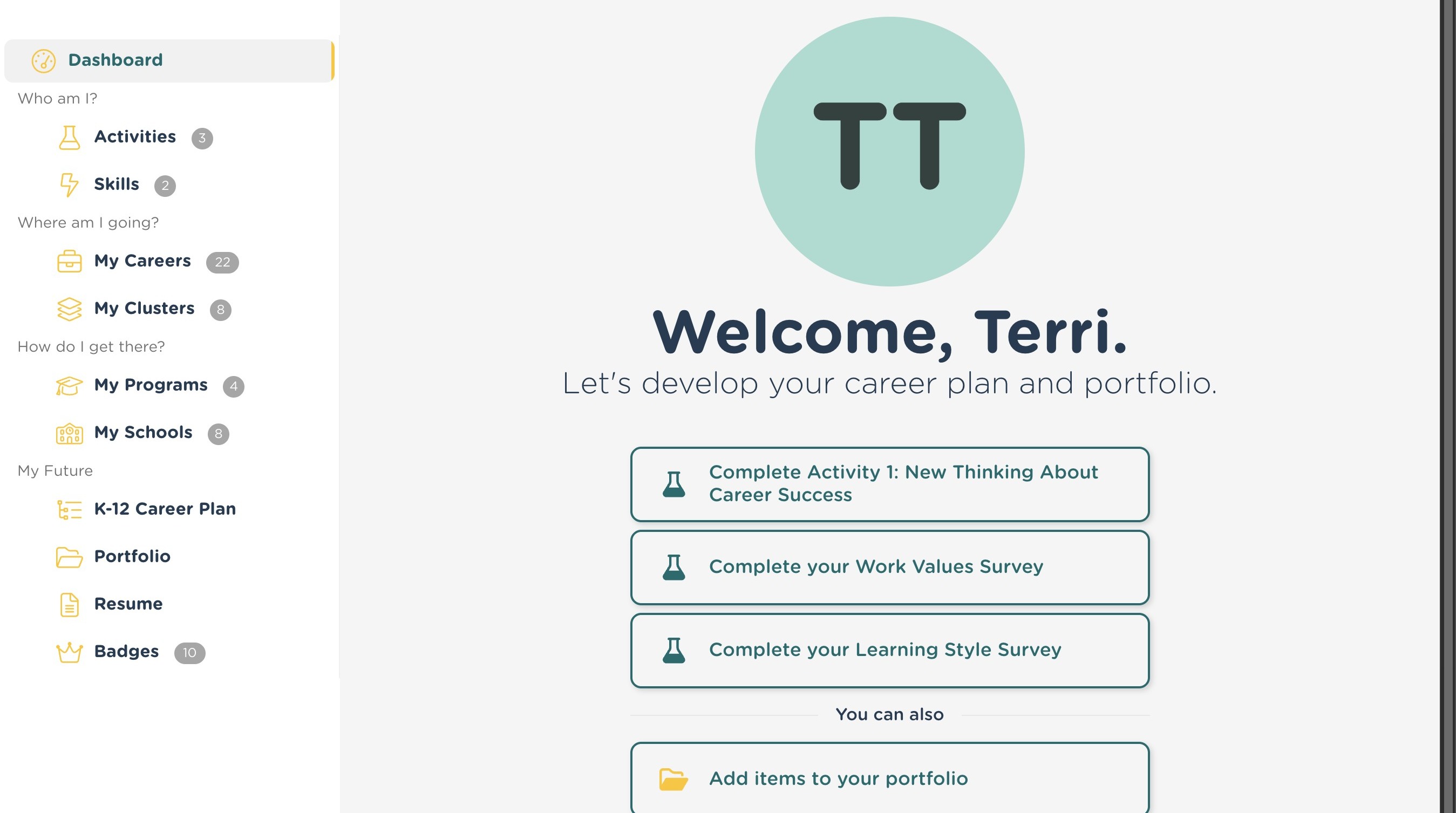
1. Navigate to https://portal.smartfutures.org/cpp/s/dashboard
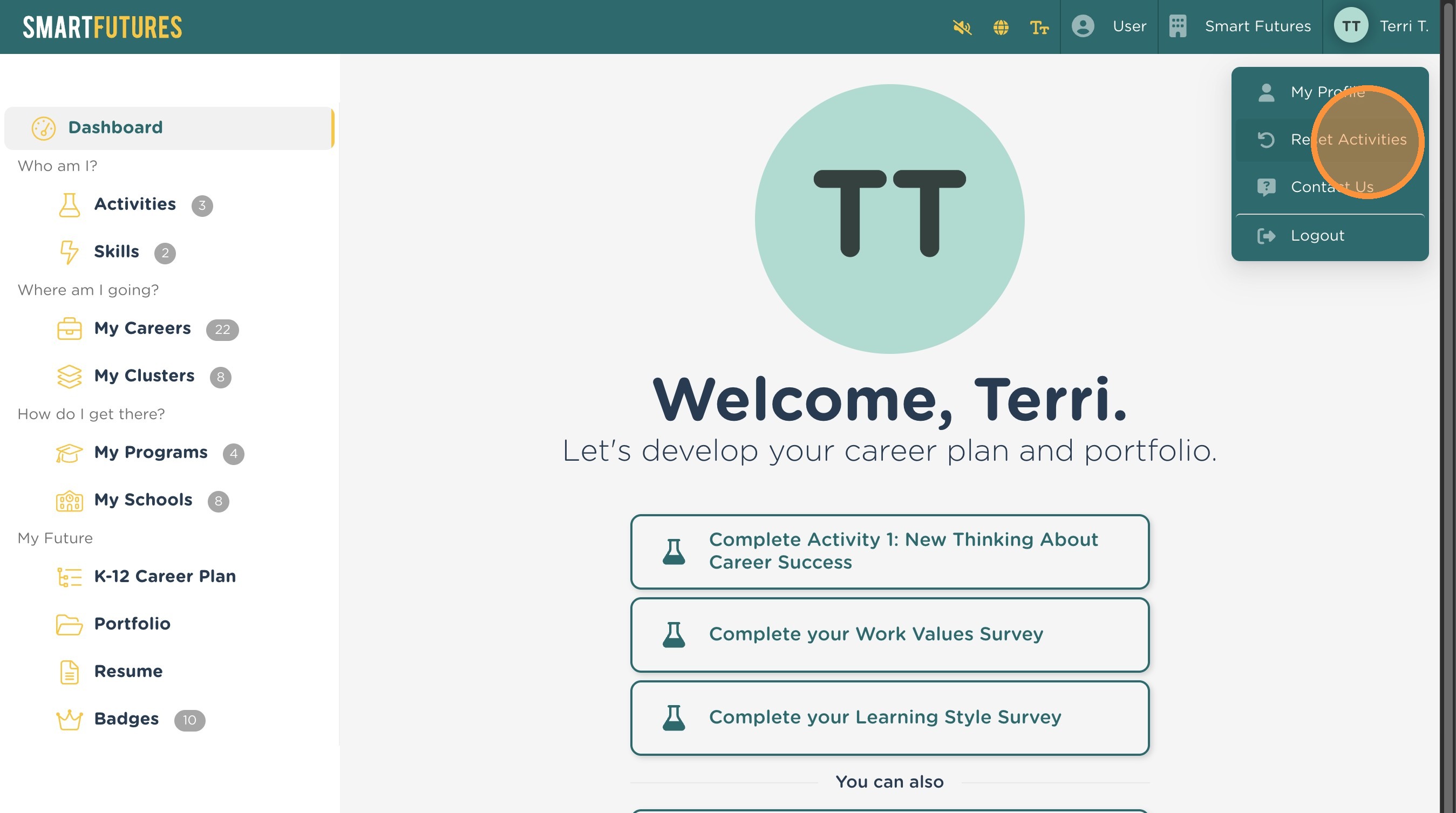
2. Click on your name in the top right and select "Reset Activities"
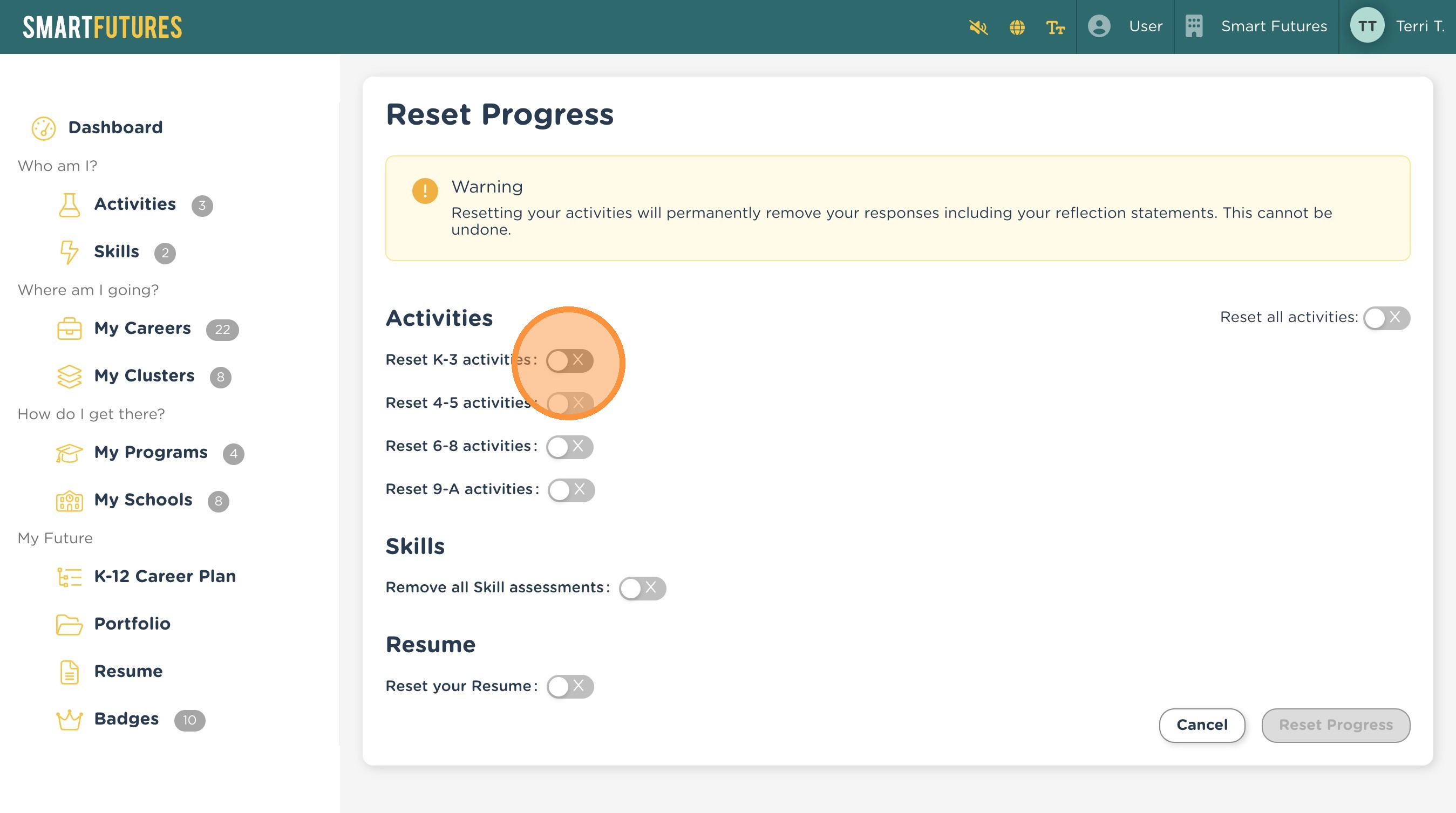
3. Click on the toggle for the group of activities you want to reset. You can also choose to reset any completed or attempted Skill assessments (microcredentials) or or Resume.
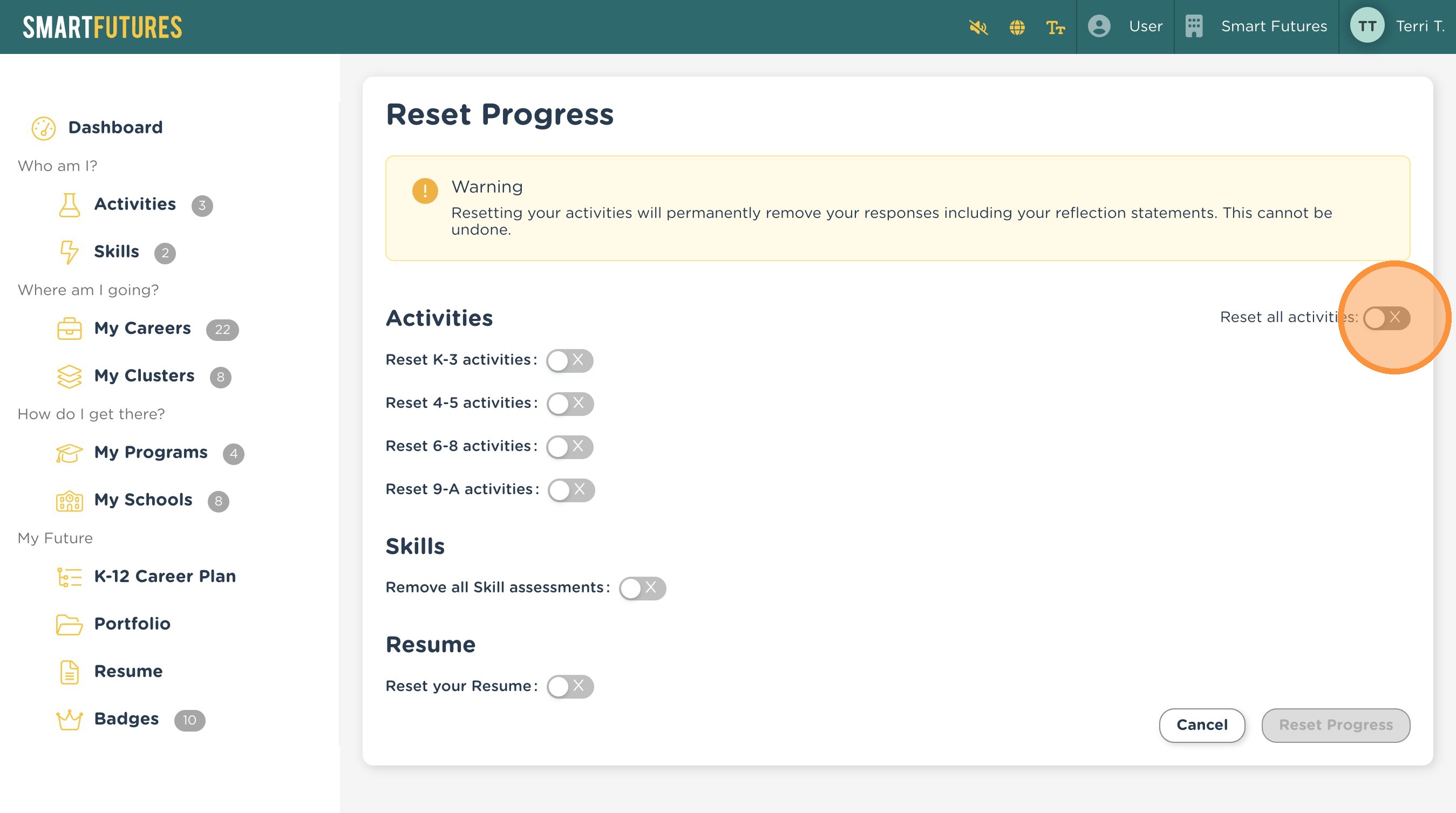
4. You can use this toggle to select all grade bands at once. Choosing this will not also select your Skill assessments or Resume.
5. Click the red "Reset Progress" button at the bottom to continue.

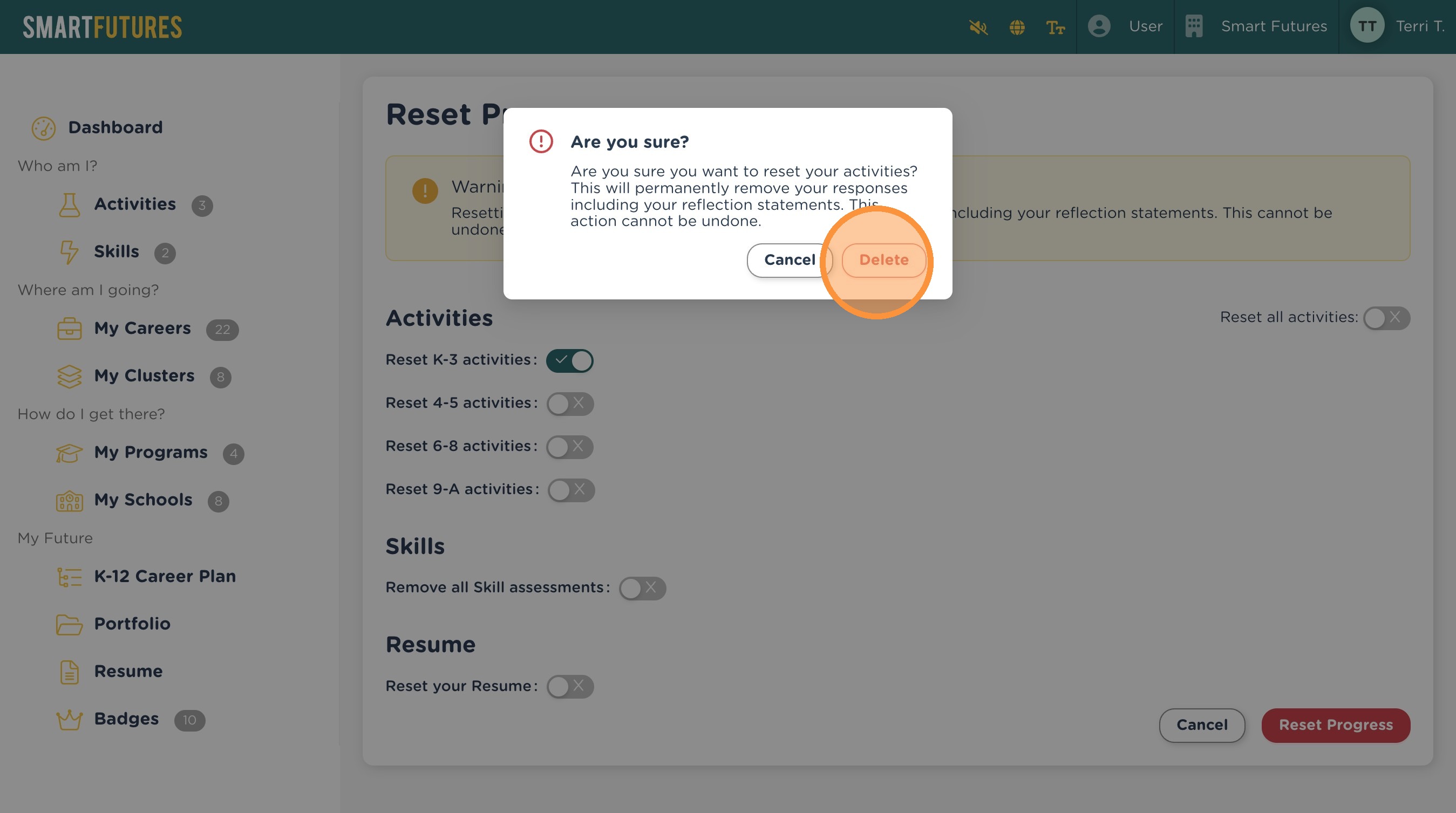
Alert: This cannot be undone. Once you click Delete in the next step to confirm what you want to reset, any previously started or completed work in the group(s) you selected will be cleared from the database and cannot be retrieved. Double check that you have only selected the work that you want reset/removed.
6. Click "Delete" to confirm.
View Scribe here: https://scribehow.com/viewer/IC_Reset_Activities_and_Progress__jnL7zu5NQ2-YdlSKEgCzkw
Related Articles
FAQ - I would like a student to redo an activity. Can that activity be reset?
We do not have a function to reset student activities. There's two options to have a student redo an activity: you can put a flag on the activity with some feedback to help the student know what needs to be changed. Flagging an activity allows the ...Alignment of SmartFutures.Org Career Planning Activities to the Pennsylvania Academic Standards for Career Education and Work
Alignment of SmartFutures.ORG Career Planning Activities to the Pennsylvania Academic Standards for Career Education and Work Download as a PDF Summary of SmartFutures.org’s Future Ready Activities by Grade Level (CEW & CRS Alignment) 13.1. Career ...Lesson Plans for Activities
Summary of Activities by Grade Level Grades K-3 My Interests Community Roles Preparation for Careers Using What you Learn in School Cooperation in Group Settings (Part 1) Successful Attitudes and Work Habits Changing Roles How Money is Used Lifelong ...Activities freezing on iPads
We've had several reports of activities freezing on iPads, specifically when using the Safari browser. These seems to be due to a function in Safari that prevents the audio from playing without interaction from the user. The easiest solution could be ...V2: Progress Monitoring report
CEW (Career Education & Work) tab This tab of the Progress Monitoring report shows how many artifacts each student has completed for their current grade band in the default view. You can see the artifact count for each grade band by toggling the ...