Accessibility Tools in the Smart Futures Platform
The Smart Futures platform is designed with inclusivity in mind, ensuring that all users can effectively engage with its features.
Text-to-speech
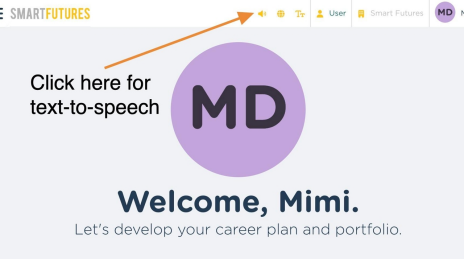
Changing Language for ESL users
Note - this uses Google Translate, so those scripts/files will need to be allowed on your students' devices.
Changing Text Size
Video Transcripts & Captions
Voice-to-text
Related Articles
V2: Navigating the Smart Futures Student Dashboard 9-Adult
Smart Futures is a career planning and portfolio platform for kids, teens, and young adults. Inside Smart Futures, you’ll find activities that will help you define your interests, explore your career options and education paths, and enhance your ...Smart Futures info for Parents
SmartFutures.org is an online career planning and career portfolio platform that many school districts and charter schools in Pennsylvania use to 1) meet the new requirements for Career Readiness Indicators that are part of the Future Ready PA Index, ...Navigating Classes in Smart Futures
Classes in Smart Futures are used as a basis for generating reports. Your Classes don’t need to match your class periods exactly, unless that’s what you prefer. Some find it helpful to create Classes based on Graduation Year, while others prefer ...V2: Rostering Students with Smart Futures
There are three ways to roster your students with Smart Futures. Rostering via Clever or Classlink Rostering students by CSV File Rostering students manually Option 1: Rostering by Clever or ClassLink We heavily encourage our customers to use ...Duplicate a Class in Smart Futures
Classes in Smart Futures can only be assigned to one Instructor/Coordinator. If you want to have someone else have access to the same Class for reporting, a Coordinator can duplicate the Class and assign it to another Instructor/Coordinator. 1. ...