V2: Custom Reports: Login Info
This guide will show you how to view and/or export a list of login usernames for your students. We do not show passwords for security reasons. If your students use Google or Microsoft SSO to login, the associated email address is not shown in this report. For that, you should look at the students' email address(es).
1. Navigate to https://portal.smartfutures.org/i/dashboard

2. Click "Custom Reports"
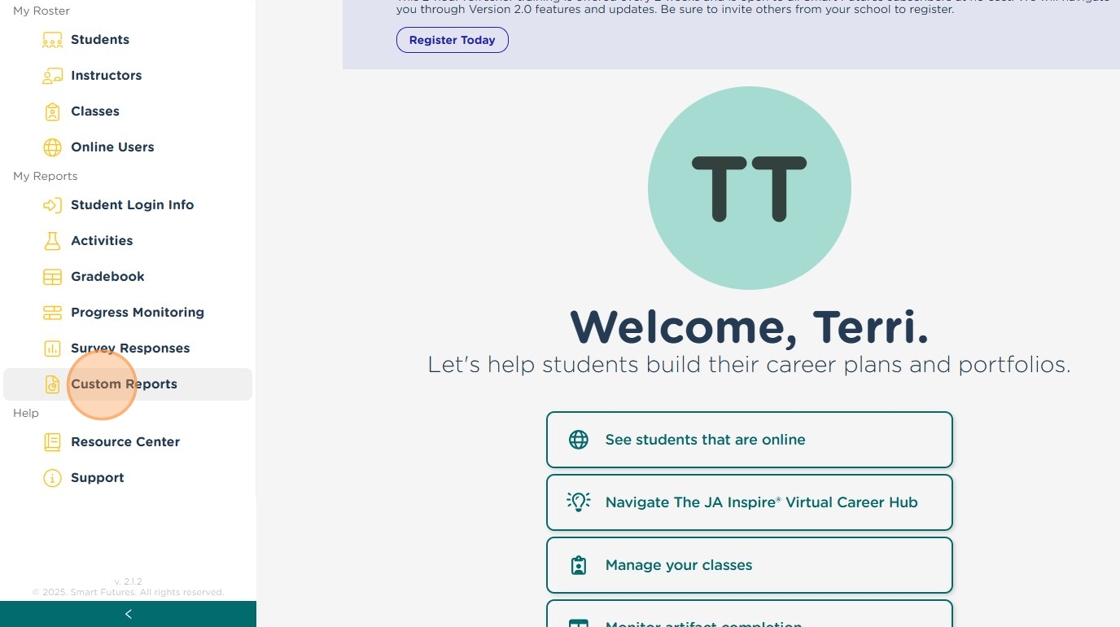
3. Click "Miscellaneous"

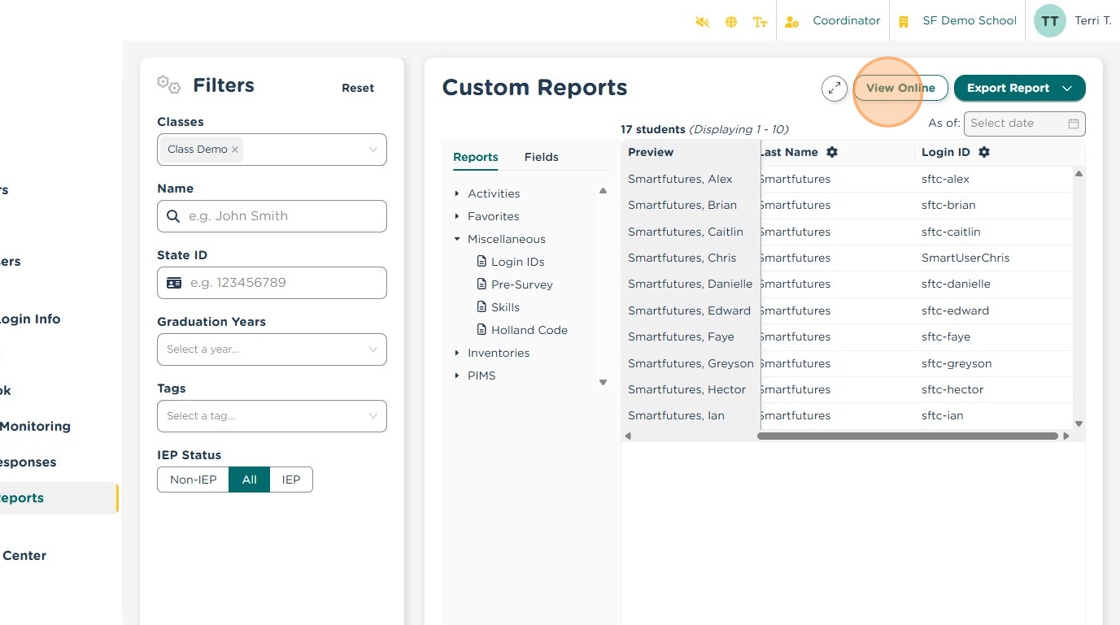
4. Click "Login IDs". This report will include the students' First and Last Names, and their Login ID, if any, for your school/district. We do not show passwords for security reasons.

Alert: If no username is show, there is no username and password set up for that student for your school/district. If your school/district uses Clever or Classlink for automated rostering, there is no username and password automatically created.
5. Click "View Online" to view the full report in your browser or
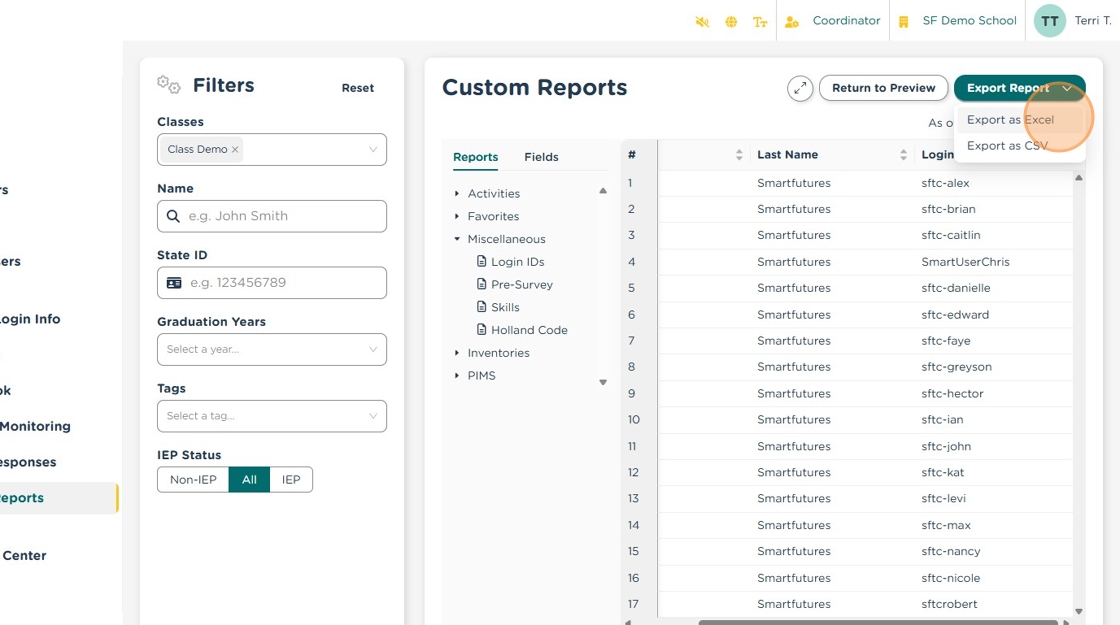
6. Click "Export Report" and select if you want the report in Excel or CSV format to save it to your computer.
View Scribe: https://scribehow.com/viewer/Custom_Reports_Login_Info__w_O3qm2pTB2KUFF_YxWG6Q
Related Articles
Navigating Classes & Reports
Under the My Students, you will find: Users Online My Classes My Reports Users Online This will show you which students in your Classes are currently logged in to Smart Futures. If you don't have Classes set up yet, you will not be able to see any ...V2: Student Login Info Report
1. Navigate to https://portal.smartfutures.org/i/dashboard 2. Click "Student Login Info" 3. Use the Universal Filters to select the students that you want included in your report. 4. If the student has a username for your school/district, it will be ...Login Frequently Asked Questions
I am a student and cannot sign in. Ask your teacher or counselor how you should be logging in to Smart Futures. There are different sign in options available for different schools and school districts, and your teacher should be able to tell you what ...V2: Add login credentials for an existing student
You can do this from any roster or report that lists the students' names. The steps below refer to starting on the Dashboard and using the Students roster as a Coordinator, but you can also begin at Step 3 from almost any report in Smart Futures. 1. ...Smart Futures info for Parents
SmartFutures.org is an online career planning and career portfolio platform that many school districts and charter schools in Pennsylvania use to 1) meet the new requirements for Career Readiness Indicators that are part of the Future Ready PA Index, ...