V2: Logging in with a Username and Password
1. Navigate to https://portal.smartfutures.org/
2. Click on the "Select Your School" field
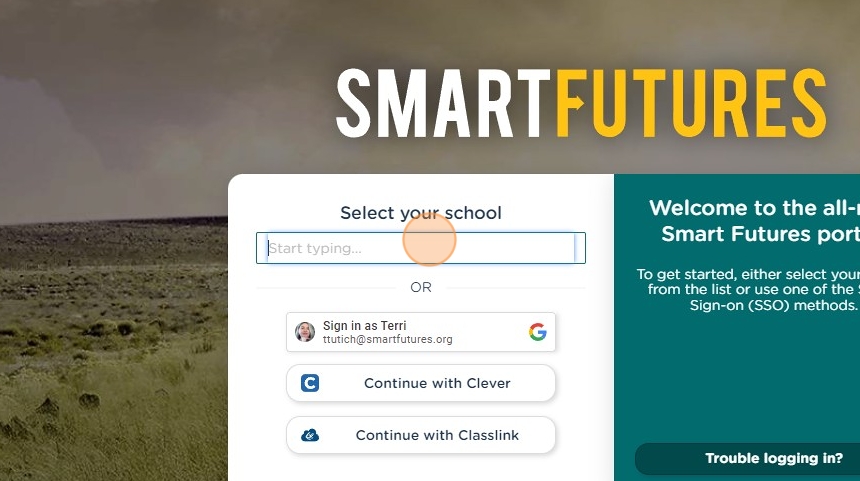
3. Begin typing the name of your school (not the district, but the specific school name.
4. Select your school from the list when you see it. Again - you must select a specific school, not the district name
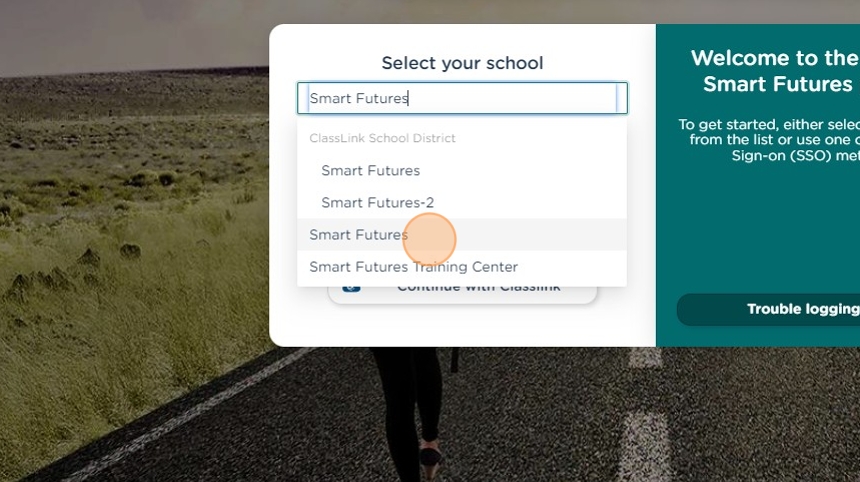
5. Enter your username.

6. Enter your password.
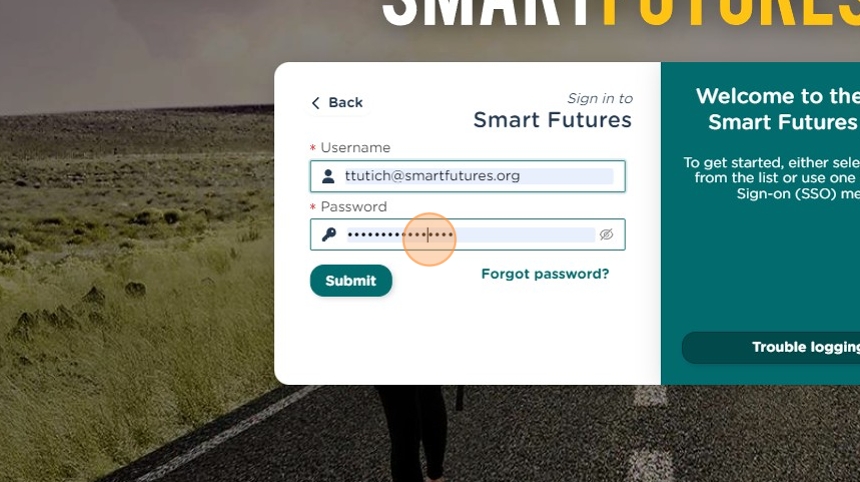
7. Click "Submit"

See it in Scribe: https://scribehow.com/shared/V2_Logging_in_with_a_Username_and_Password__3au0akfFSkanhmP54BYp8A
Related Articles
Changing Password
If you are able to log in to your Smart Futures account and would like to change your password, it's very simple. While logged in, hover over your name in the upper right corner to reveal the dropdown menu Select My Profile from the dropdown menu ...V2: Student Login Info Report
1. Navigate to https://portal.smartfutures.org/i/dashboard 2. Click "Student Login Info" 3. Use the Universal Filters to select the students that you want included in your report. 4. If the student has a username for your school/district, it will be ...V2: Rostering Students with Smart Futures
There are three ways to roster your students with Smart Futures. Rostering via Clever or Classlink Rostering students by CSV File Rostering students manually Option 1: Rostering by Clever or ClassLink We heavily encourage our customers to use ...V2: Custom Reports: Login Info
This guide will show you how to view and/or export a list of login usernames for your students. We do not show passwords for security reasons. If your students use Google or Microsoft SSO to login, the associated email address is not shown in this ...V2: Add login credentials for an existing student
You can do this from any roster or report that lists the students' names. The steps below refer to starting on the Dashboard and using the Students roster as a Coordinator, but you can also begin at Step 3 from almost any report in Smart Futures. 1. ...